How a Clearer Upgrade Path Could Earn Zapier More Revenue
 +20 XP
Case study
How a Clearer Upgrade Path Could Earn Zapier More Revenue
A small team hits its monthly task limit on Zapier, and critical automations stop running until they upgrade. You will follow each step from the warning email to the dashboard, and see nine ways to make an upgrade faster, clearer and more reassuring.
+20 XP when you reach the endWhat you will learn
- Write urgent account emails with one clear action
- Keep the customer's pain point visible on the pricing page
- Close the loop after payment so people know the problem is solved
Scroll to follow the story. The screen changes with you.
Based on the learnings from Growth.Design: 9 Ways To Boost SaaS Revenues With A Better Upgrade UX, presented in our own format.
Step 1 of 9
- Action Needed
01
The setup
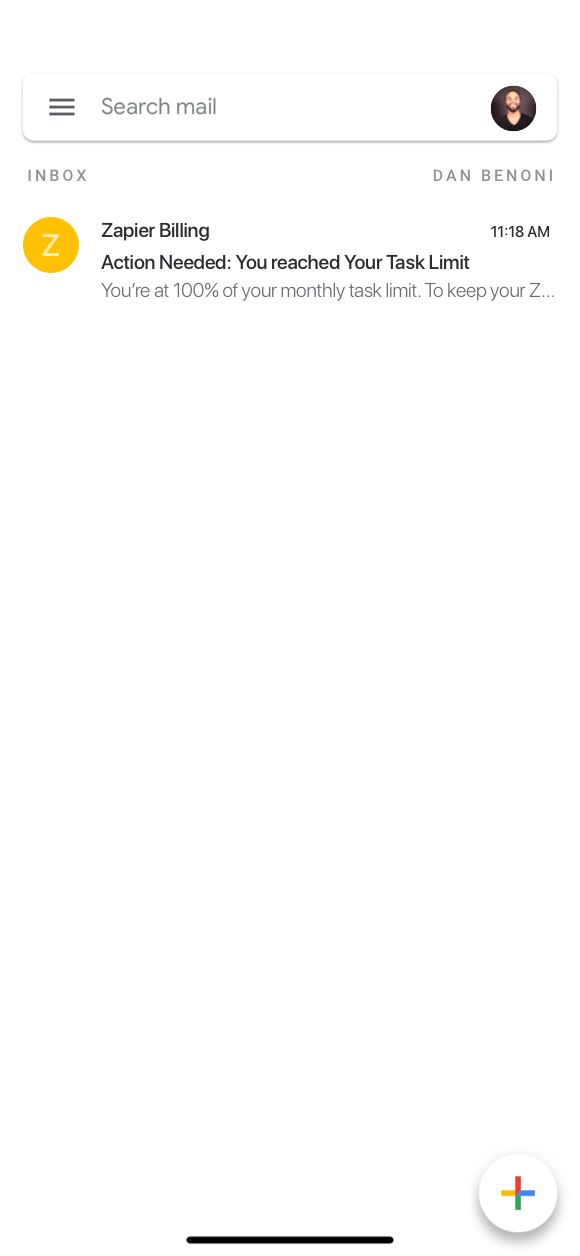
An email arrives: the team has used 100 percent of its monthly tasks.
The subject line reads 'Action Needed: You Reached Your Task Limit'. The team relies on a few critical automations, so missing even one task would hurt. The words 'Action Needed' make the urgency clear before the email is even opened.
TakeawayA subject line that names the problem and the action gets opened.
Usage based pricingZapier's tasks are a good value metric: aligned with customers' needs, growing with usage and easy to understand. Growth.Design cites research that improving monetization is about four times more efficient as a growth lever than improving acquisition.
 Two actions
02
The friction
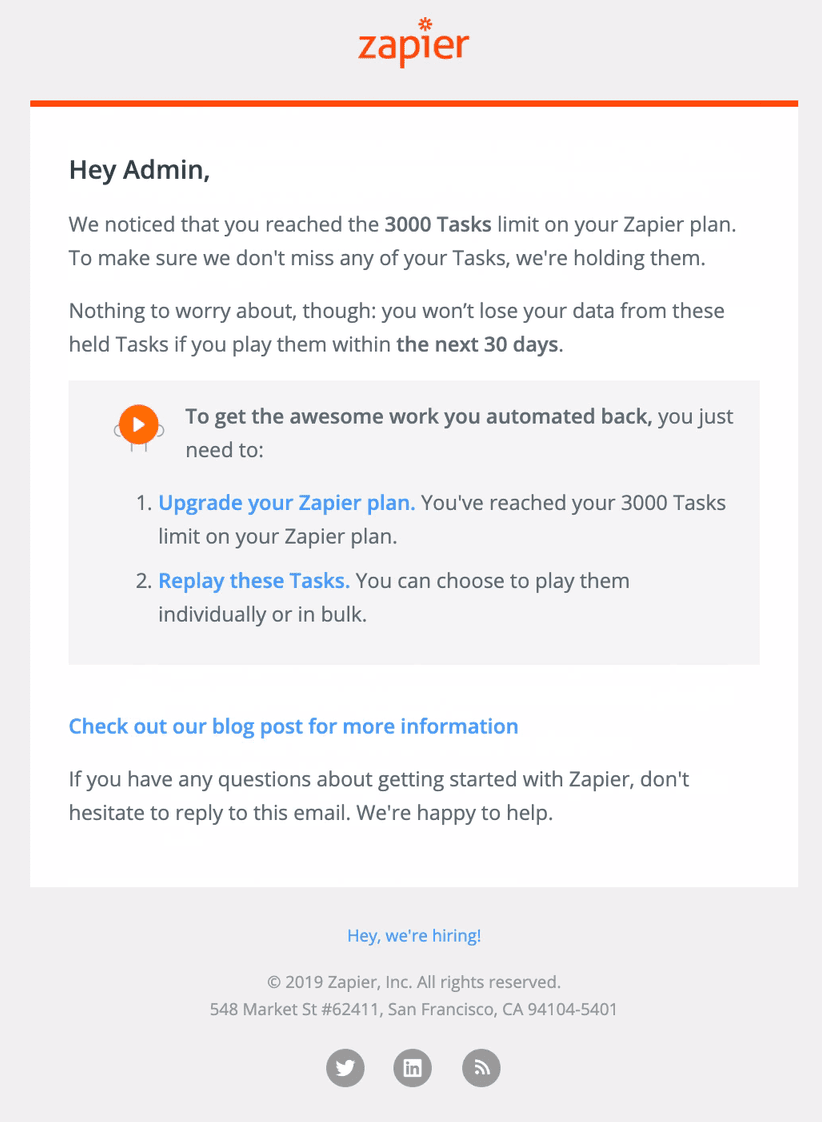
The email body sounds relaxed and scatters attention.
The opening is a fair warning: tasks over the limit are being held and will be kept for 30 days. After that, the email loses its urgency. It is wordy, offers two different actions, links to a blog post, invites you to apply for a job, and ends with social icons.
TakeawayAn urgent message should have one goal and nothing that competes with it.
Original Buried linksRedesign 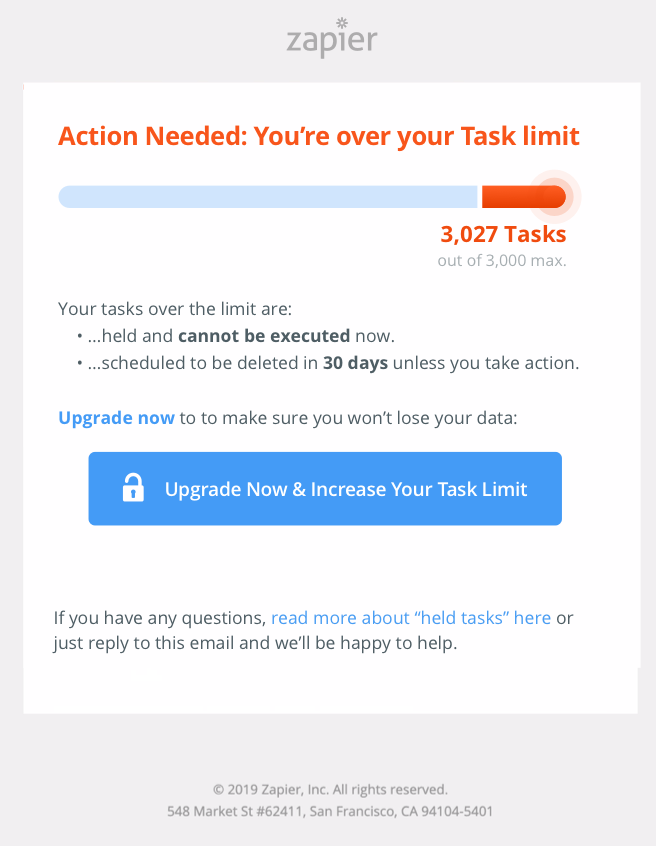 One clear action
03
Repair
Show the overflow, list what it means, and offer one button.
The redesign opens with 'Action Needed: You're over your Task limit' above an overfilled bar at 3,027 of 3,000 tasks. Two short bullets say the extra tasks are held and will be deleted in 30 days, and one large button reads 'Upgrade Now and Increase Your Task Limit'.
What changed
- An overfilled bar shows the loss at a glance
- Two bullets replace three paragraphs
- One main call to action
- Blog, hiring and social links removed
TakeawayMake the potential loss visible, and make the next step impossible to miss.
Be clear, not exhaustiveCritical emails should convey urgency and have one clear call to action. Growth.Design cites Campaign Monitor and VWO case studies where this lifted email conversion by 27 percent, and in one case by up to 232 percent.
 Hidden usage
04
The friction
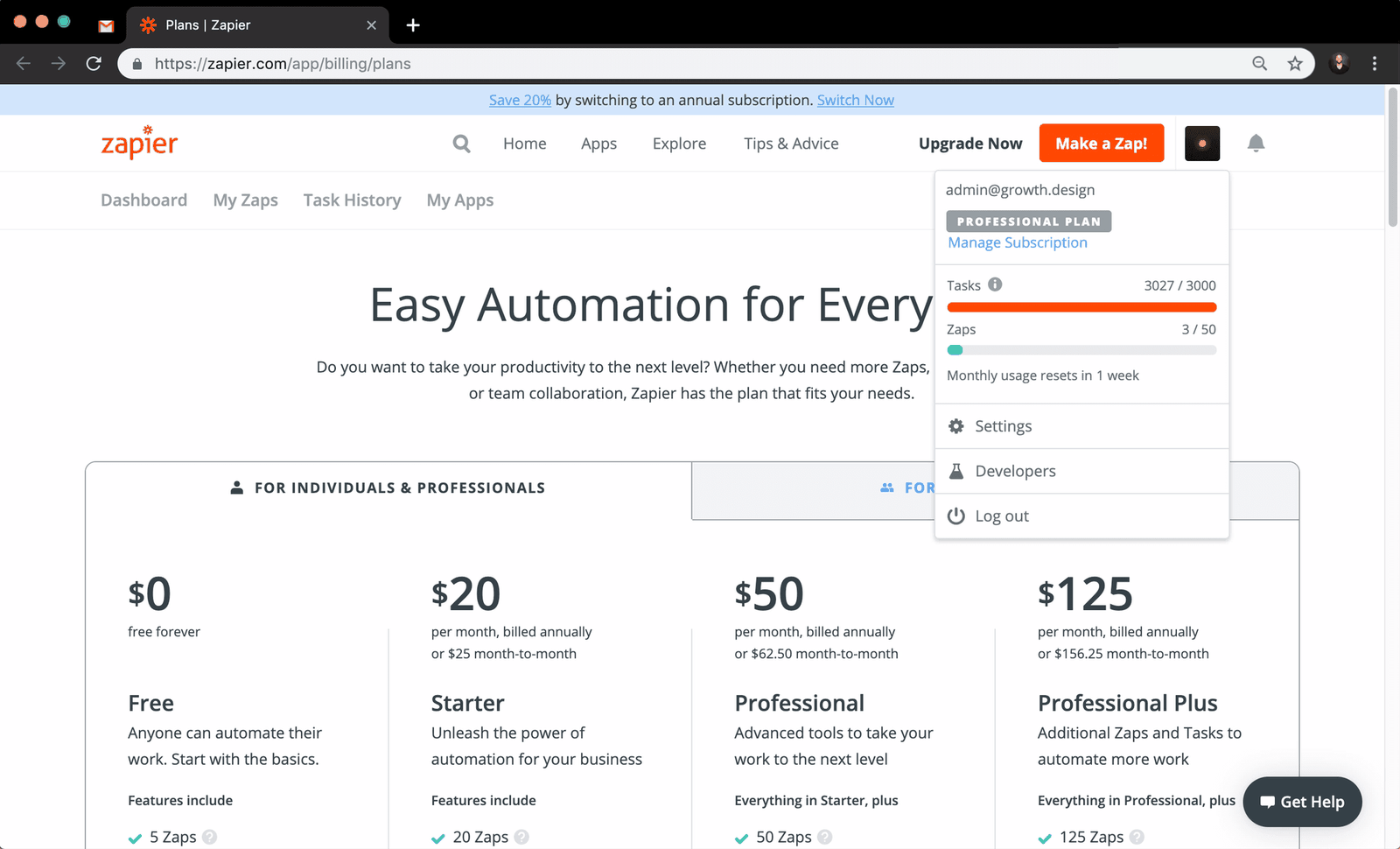
The pricing page says nothing about the tasks that are waiting.
The upgrade link lands on 'Easy Automation for Everyone', the same page any visitor sees. The only place to check the task limit is a dropdown under the account avatar. The team's urgent problem has disappeared from view.
TakeawayContinue the story the email started. Show people their own situation on the page.
Loss aversionWe hate losing what we have, even if more could be gained. A visual anchor such as a progress bar reinforces the sense of loss and is a strong way to raise engagement.
 Tasks per month
05
The friction
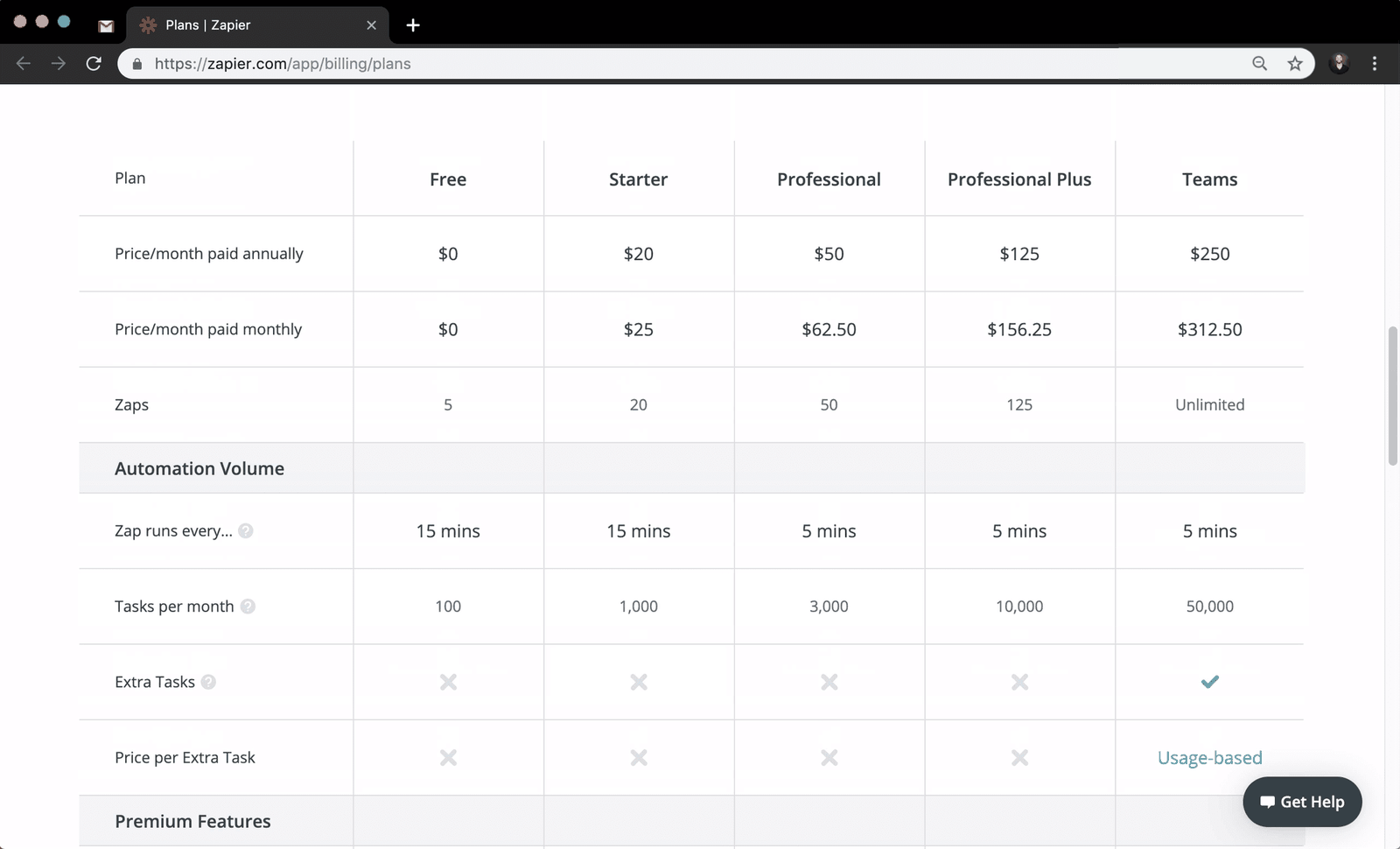
To compare plans, the team has to scroll a long feature table.
The plan cards do not mention tasks, and several buttons look the same. The 'Tasks per month' row is buried in a table of features the team does not care about. They would happily upgrade just for the limit, yet they have to hunt for it.
TakeawayPut the metric the customer is upgrading for at the top of the comparison.
Original Hidden usageRedesign 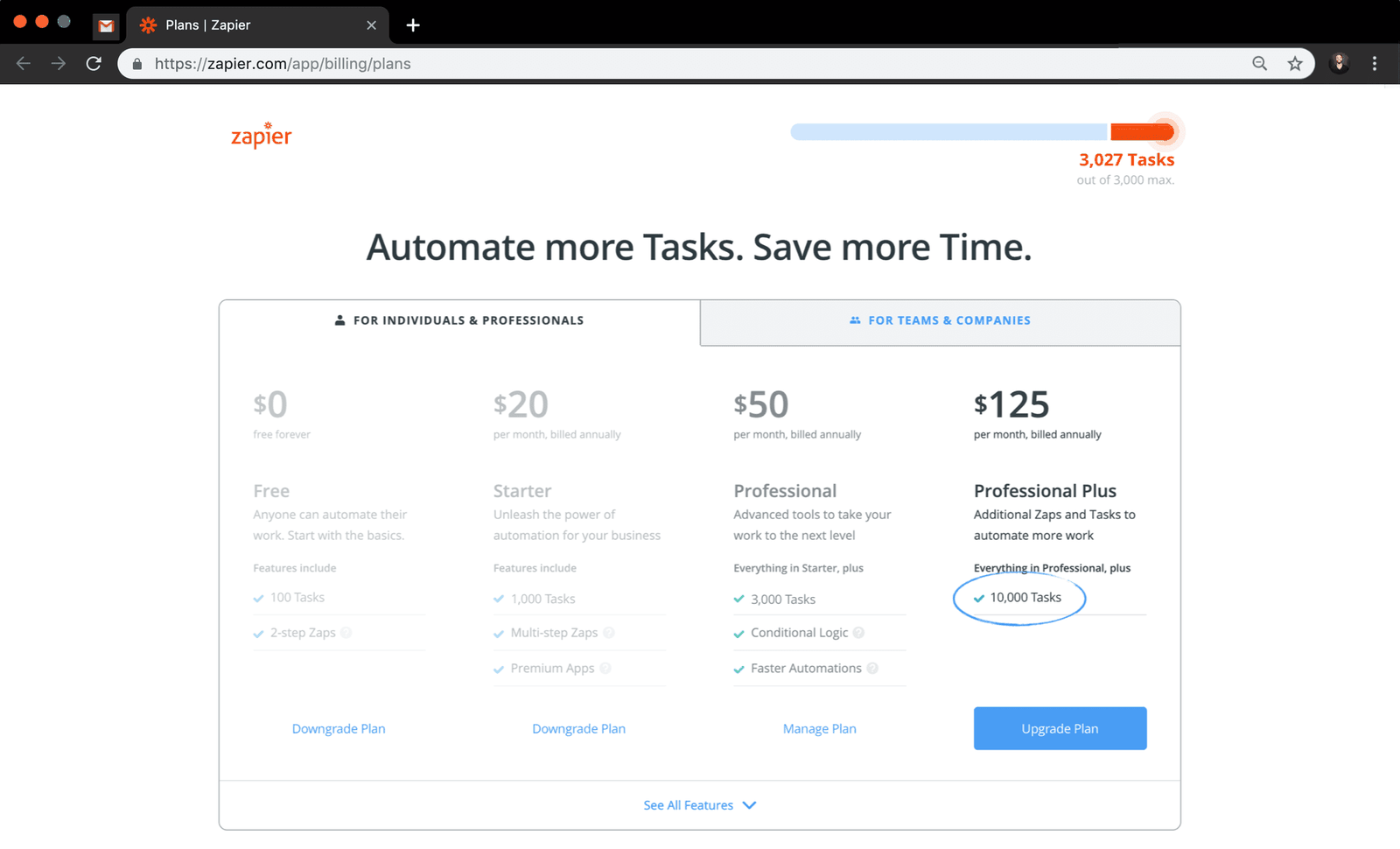 10,000 Tasks
06
Repair
Keep the usage bar in the header and highlight the right plan.
The redesign uses a minimal header with the same 3,027 tasks bar from the email. Lower tiers fade back, '10,000 Tasks' is circled on Professional Plus, and a single blue 'Upgrade Plan' button stands out.
What changed
- Minimal header with a usage reminder
- The most relevant metric and plan are highlighted
- Clear hierarchy points to one upgrade button
- No endless scrolling to compare plans
TakeawayDesign the page around the customer's most pressing pain point.
Checkout optimizationFirst upgrades, from free or trial to paid, and later upgrades, from paid to more paid, should be optimized differently. Focus each journey on the customer's most pressing pain point, here the task limit.
 Navigation links
07
The friction
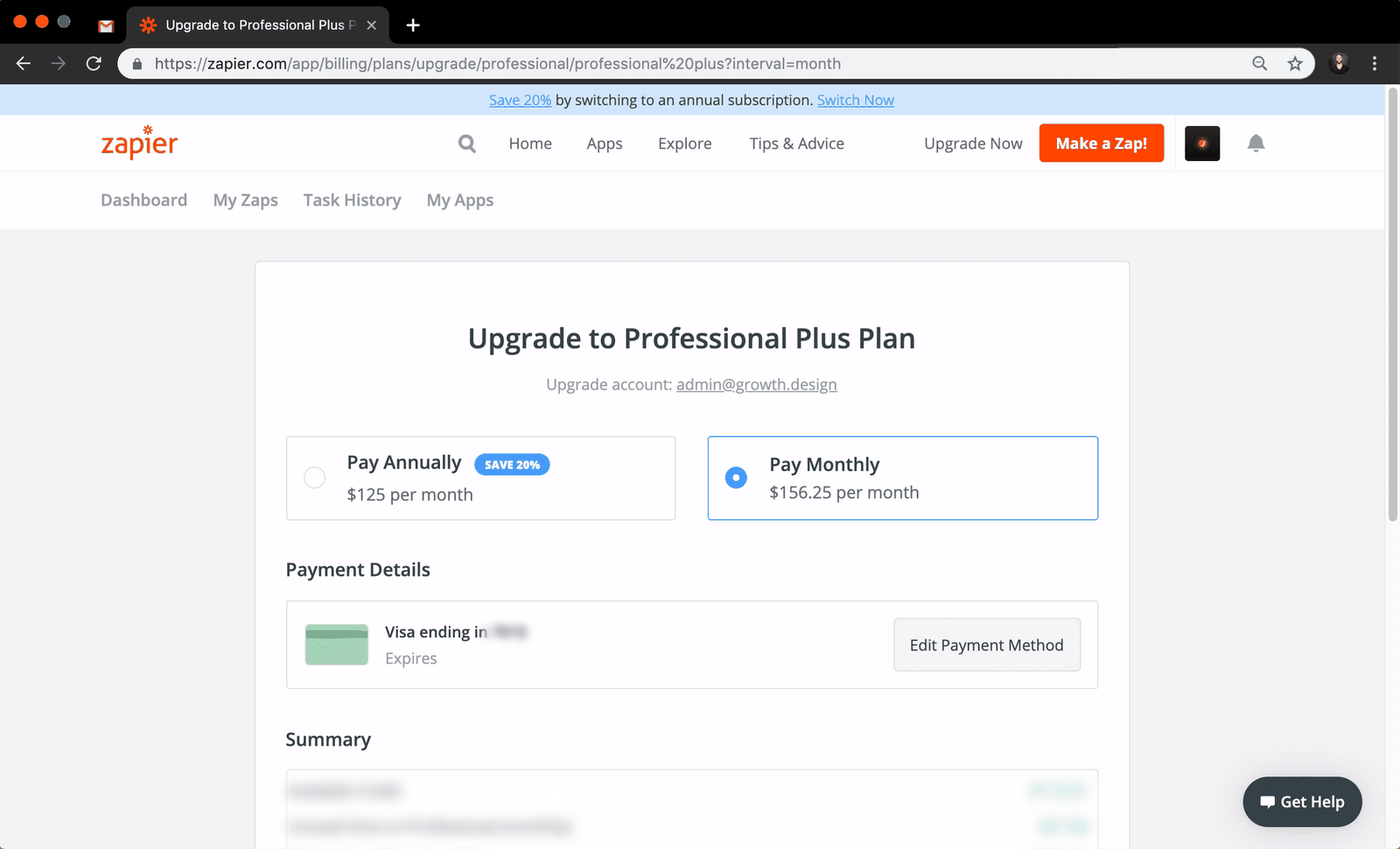
The checkout page keeps the full site navigation.
Upgrading to Professional Plus is simple: pick monthly or annual and confirm the card. But around 15 links in the header and footer invite the team to wander off during the most important step.
TakeawayOn checkout pages, remove navigation that leads away from paying.
Fewer links, fewer leaksGrowth.Design cites a HubSpot test in which removing header and footer navigation from critical pages such as signup and checkout lifted conversion by up to 28 percent.
 About the purchase
08
The ending
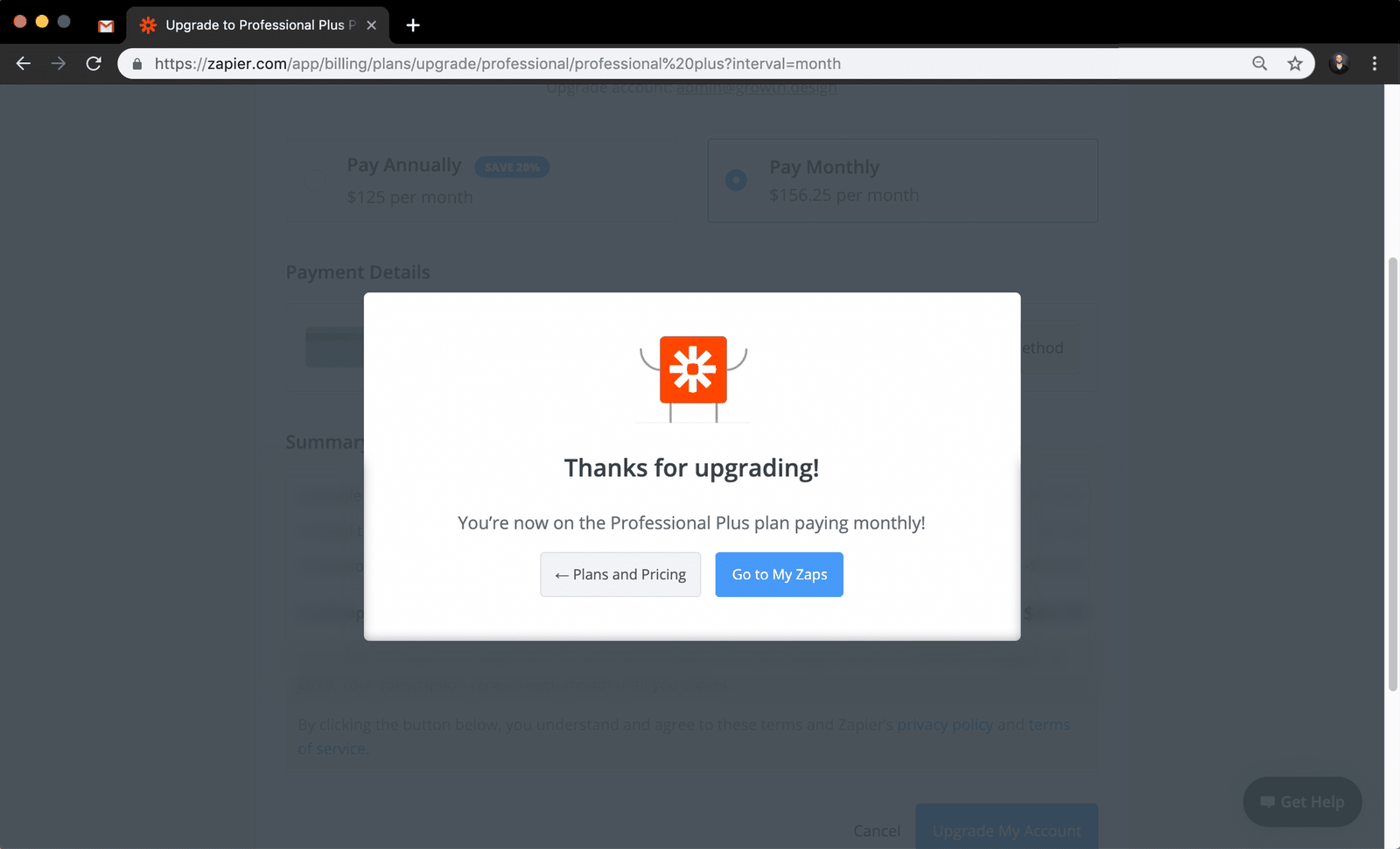
Confetti celebrates the upgrade, but not the problem it solved.
A modal says 'Thanks for upgrading!' with a burst of confetti, a nice touch that also takes attention away from the higher bill. It talks about the purchase, not the time the team will save or the tasks that can now run.
TakeawayCelebrate the customer's outcome, not your sale.
Peak end ruleWe judge experiences mostly by their peaks and how they end. A message like 'Cheers to even more time saved, thanks to your new tasks' would celebrate what the customer actually gains.
 Play held tasks
09
Repair
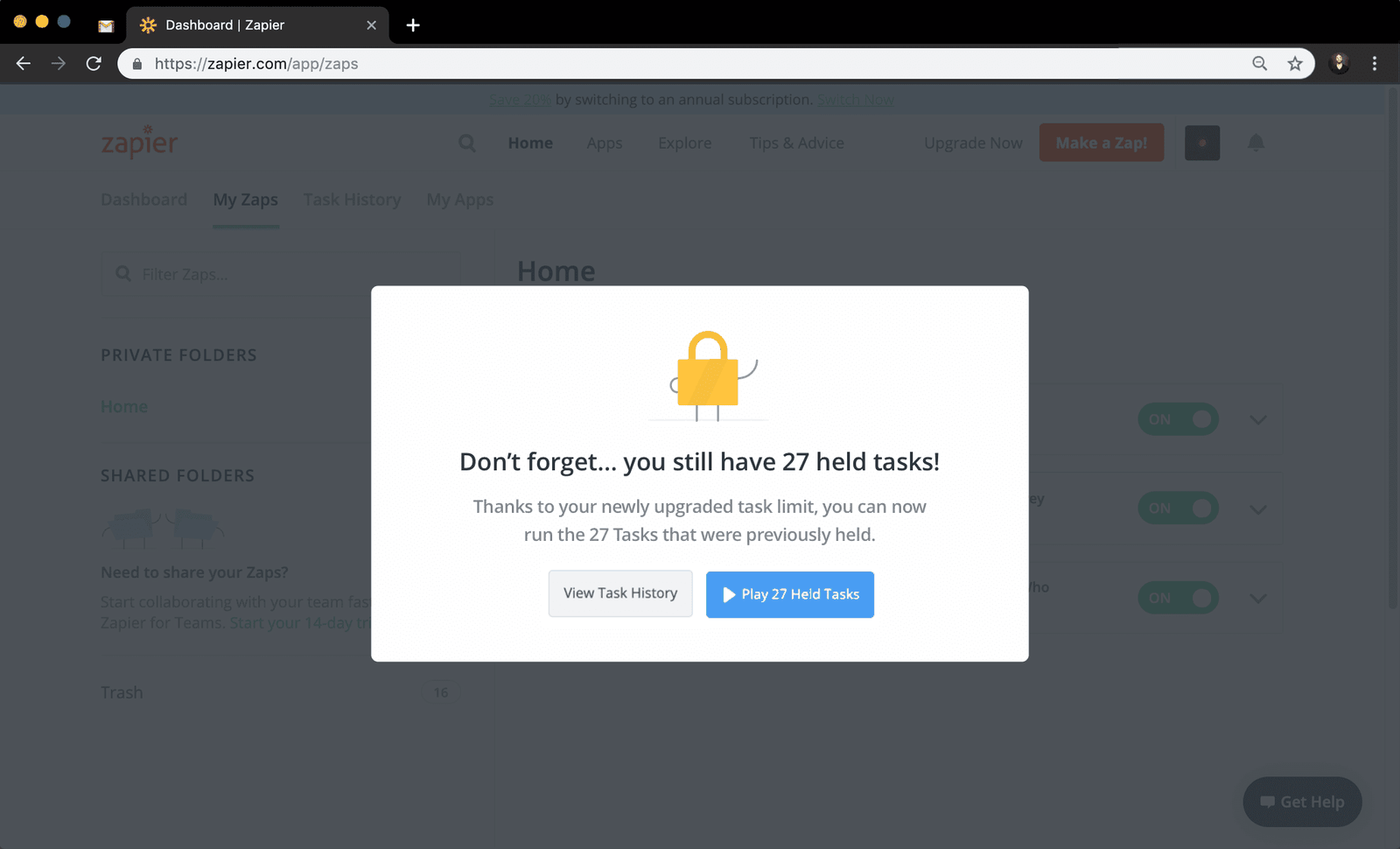
Remind people that their held tasks are waiting, and let them run them.
After the upgrade, the held tasks were not run by default, and the team had to contact support to find out. A simple modal would close the loop: 'Don't forget, you still have 27 held tasks', with a 'Play 27 Held Tasks' button. Growth.Design scored the checkout experience a C.
What changed
- A clear reminder of the 27 held tasks
- One button to run them now
- A secondary link to view task history
TakeawayEnd the flow by confirming that the problem people paid to fix is fixed.
Feedback loopPeople upgrade for specific reasons. At the end of checkout, reassure them with clear feedback that the reason has been handled, to avoid frustration and support requests.
Every takeaway, in one place
- The setupA subject line that names the problem and the action gets opened.
- The frictionAn urgent message should have one goal and nothing that competes with it.
- RepairMake the potential loss visible, and make the next step impossible to miss.
- The frictionContinue the story the email started. Show people their own situation on the page.
- The frictionPut the metric the customer is upgrading for at the top of the comparison.
- RepairDesign the page around the customer's most pressing pain point.
- The frictionOn checkout pages, remove navigation that leads away from paying.
- The endingCelebrate the customer's outcome, not your sale.
- RepairEnd the flow by confirming that the problem people paid to fix is fixed.
Source: Growth.Design: 9 Ways To Boost SaaS Revenues With A Better Upgrade UX
Turn upgrade moments into smooth, confident decisions.
When customers are ready to pay, every unclear step costs revenue and goodwill. Zyxware can map your upgrade journey across email, pricing and checkout, remove the detours, and design each screen around the reason people are upgrading.