Design Blunders
 +20 XP
Case study
Design Blunders
A shopper is looking for blue light glasses when a discount pop-up takes over the screen. It makes three common design mistakes, plus a tone problem. Here is how to spot each one and repair it, step by step.
+20 XP when you reach the endWhat you will learn
- Spot poor contrast, weak hierarchy and hard to read text
- Recognize guilt-trip wording on a decline button
- Repair a pop-up in small, testable steps
Scroll to follow the story. The screen changes with you.
Based on the learnings from Growth.Design: How to avoid (and repair) these 3 critical design blunders, presented in our own format.
Step 1 of 11
- What they came for
01
The setup
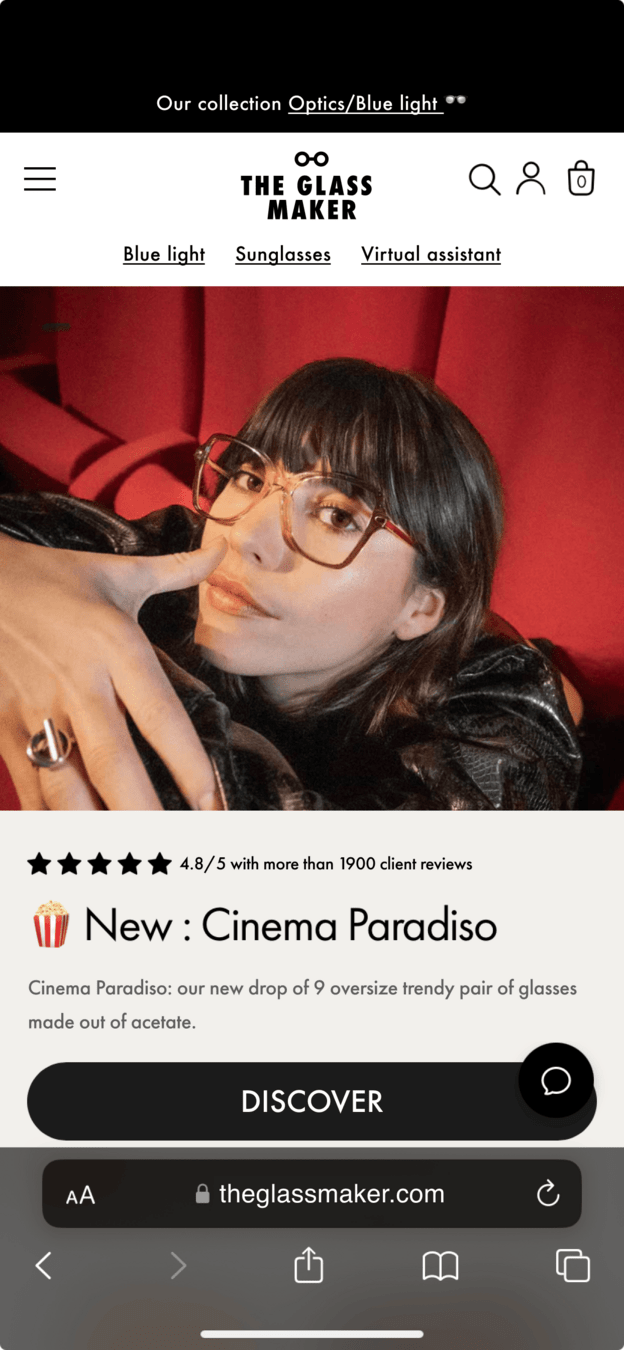
Someone is shopping for a new pair of glasses.
They land on The Glass Maker, an online eyewear store, and start browsing a new frame. They are interested, and close to buying.
TakeawayEvery screen in a buying journey competes with the reason the person came.
 Everything shouts
02
The interruption
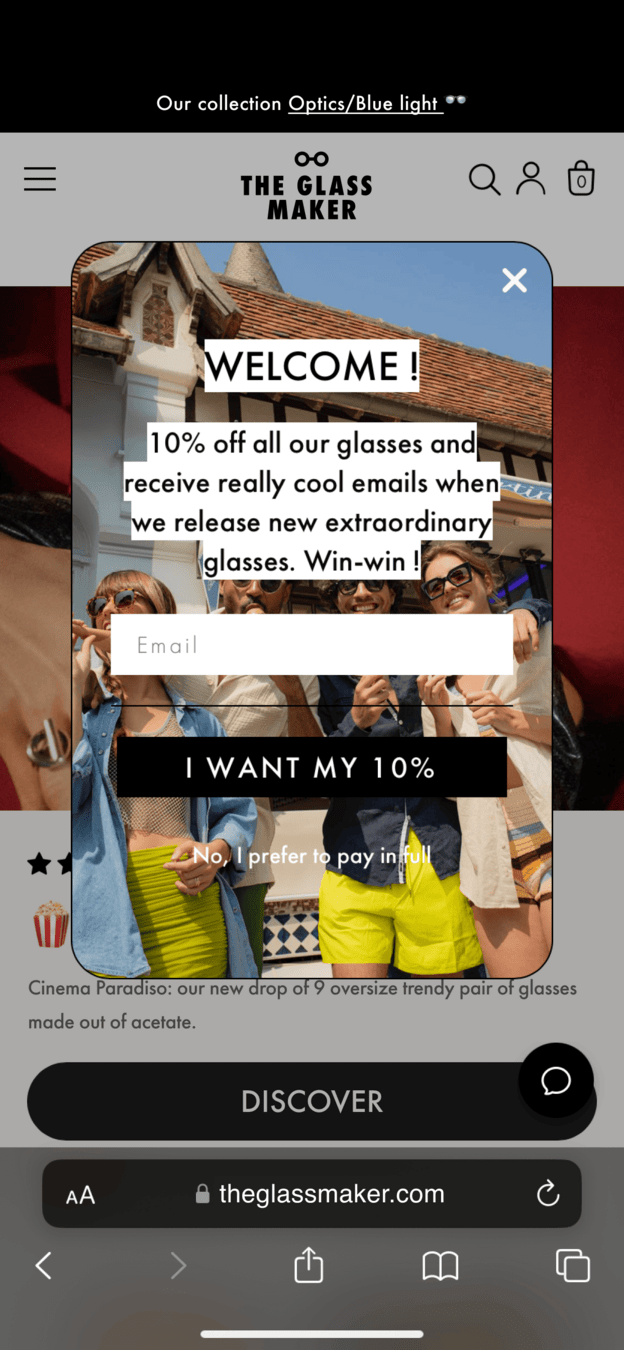
Before they can read the page, a discount pop-up covers it.
The offer itself is fine: 10 percent off in exchange for an email address. The way it is designed is the problem. Most visitors would close it without reading.
TakeawayAn interruption has to earn its place fast, or it gets dismissed.
- Button blends in
03
Blunder 1
Poor contrast: the button blends into the page.
The pop-up sits on a busy photo, and the page behind it is still bright. Foreground and background compete, so the main button is hard to find.
TakeawayThe most important element should be the easiest one to see.
- No clear first step
04
Blunder 2
Missing hierarchy: everything asks for attention at once.
The logo, the all caps headline, the photos and two calls to action all pull the eye with equal force. With no clear first thing to look at, people look at nothing.
TakeawayDecide what should be seen first, second and third, and design for that order.
- Hard to read
05
Blunder 3
Poor readability: white text over a photo.
The message is white text on top of an image, with black boxes behind parts of it. It is tiring to read, so most people will not.
TakeawayPut text on a calm, solid background. Never ask people to read over a photo.
- Guilt trip
06
And the tone
The words push too hard, and the decline link shames the reader.
'Really cool emails' and 'extraordinary glasses' sound like hype. Worse, the way out says 'No, I prefer to pay in full', which makes saying no feel foolish. This is known as confirmshaming.
TakeawayLet people say no politely. Guilt might win one click, but it costs trust.
Why this mattersGrowth.Design cites Peter Zec's research, which links good design to roughly 80 percent of buying decisions and user satisfaction. Bad design works the other way.
 Now it stands out
07
Repair 1
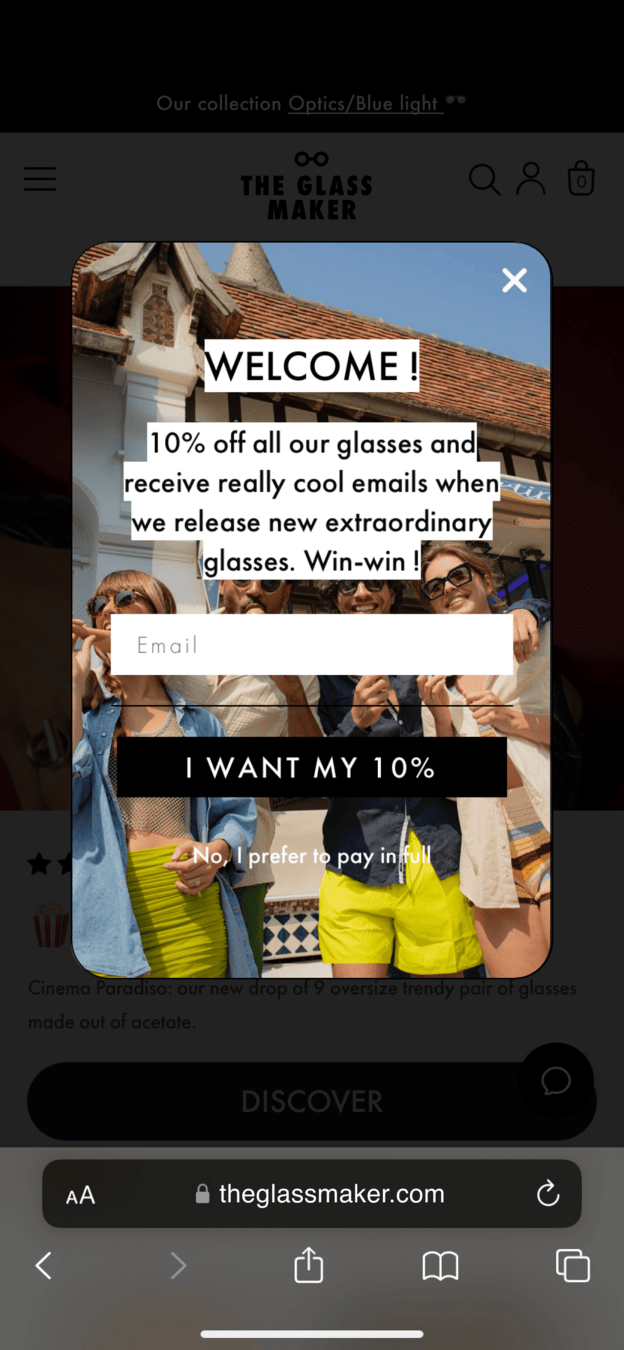
Darken the page so the pop-up stands on its own.
The first fix is the background. Dimming the page behind the pop-up removes the competition, and for the first time you can actually see the offer.
What changed
- The page behind is dimmed
- The pop-up is the brightest thing on screen
TakeawayDirect focus by quieting everything that is not the main task.
Direct focus with contrastWhen you want people to focus on one task, reduce the visibility of secondary elements and increase the salience of the primary one.
First try 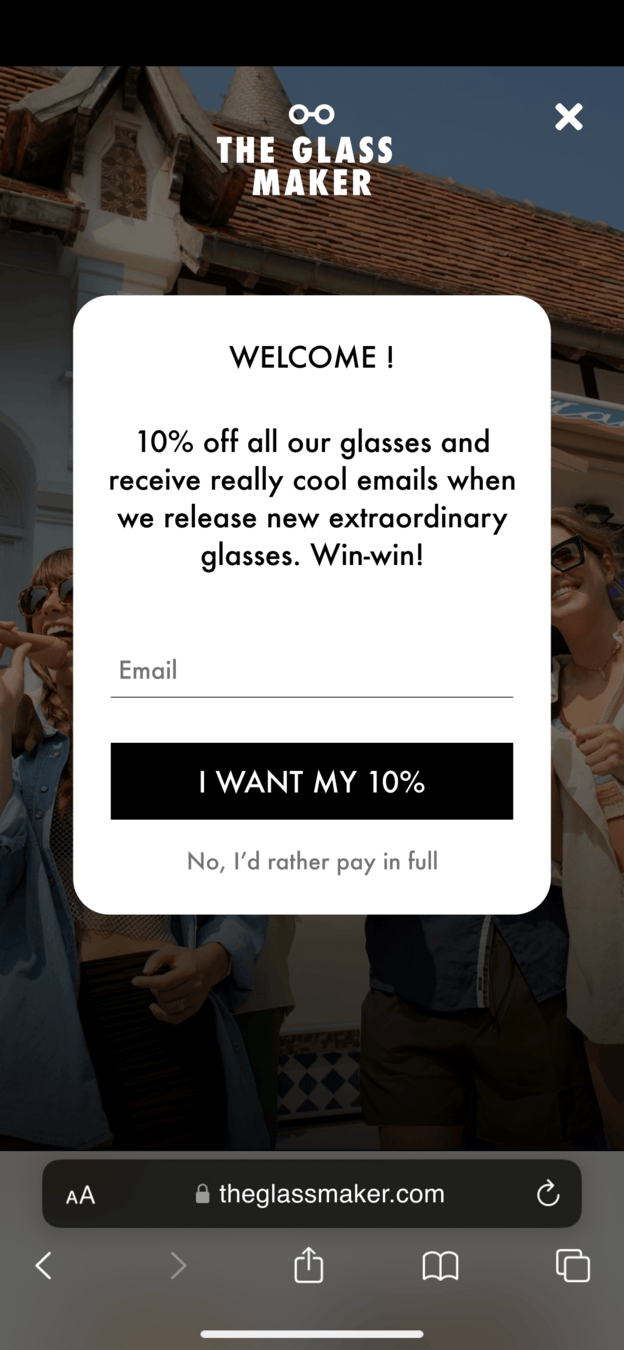 Field almost invisible
Fixed 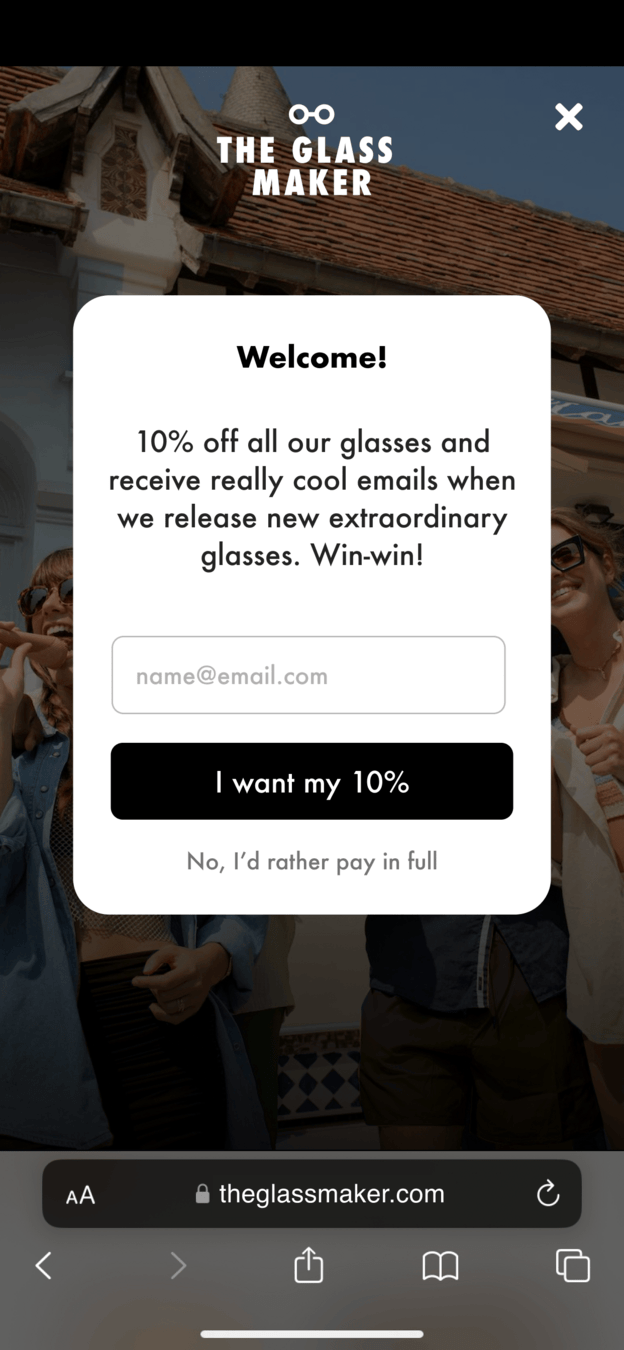 Clear field
08
Repair 2
Give the text a calm card, then fix what that broke.
Moving the message onto a white card makes it easy to read. But it creates a new problem: the email field almost disappears. The second version fixes the field and stops the shouting.
What changed
- Text moves onto a solid white card
- The email field gets a visible border and an example address
- ALL CAPS becomes sentence case, so it stops shouting
TakeawayEvery fix can create a new problem. Check the whole screen again after each change.
Before Hype and guiltEdited 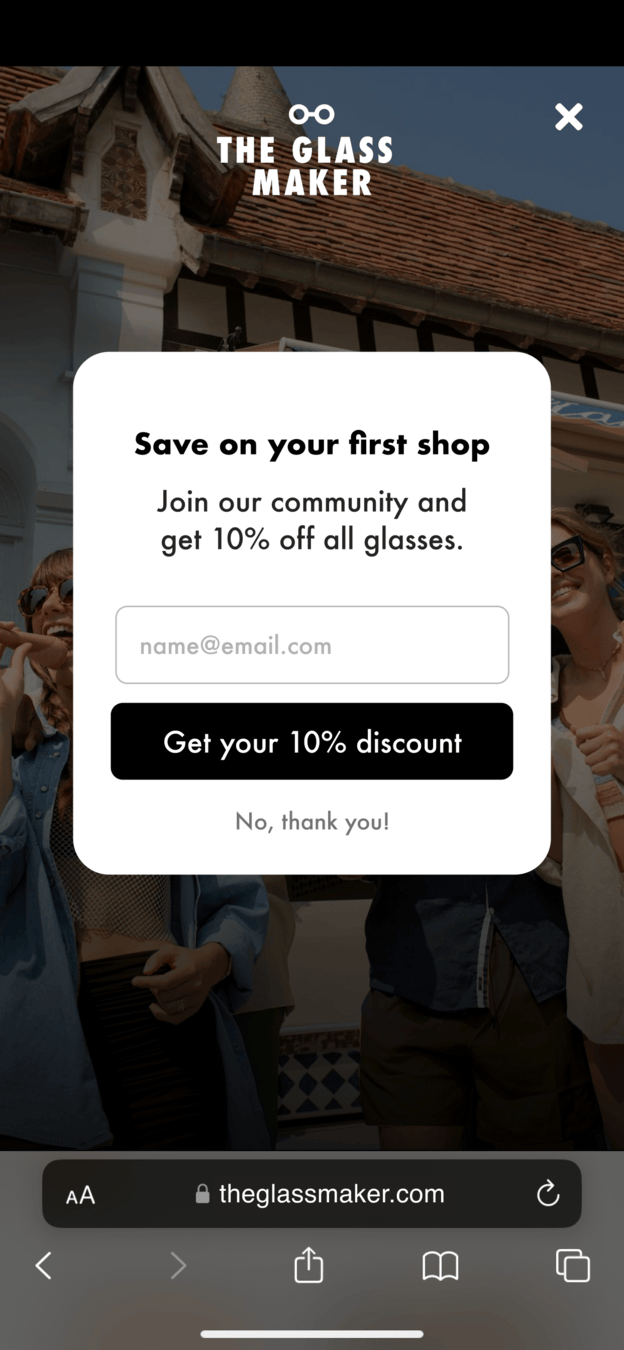 Clear benefit
09
Repair 3
Cut the words until only the benefit is left.
The edited version says what you get in the headline, trims the message to one line, and lets people decline without guilt.
What changed
- Headline: 'Save on your first shop'
- Button says what you get: 'Get your 10% discount'
- Decline becomes 'No, thank you'
TakeawaySay it in fewer words. Every extra word makes the offer easier to skip.
Write with an eraserIt is easy to explain something in many words and much harder in few. The same goes for interface copy: fewer words usually work better. And never use shaming.
Before Generic offerFinal 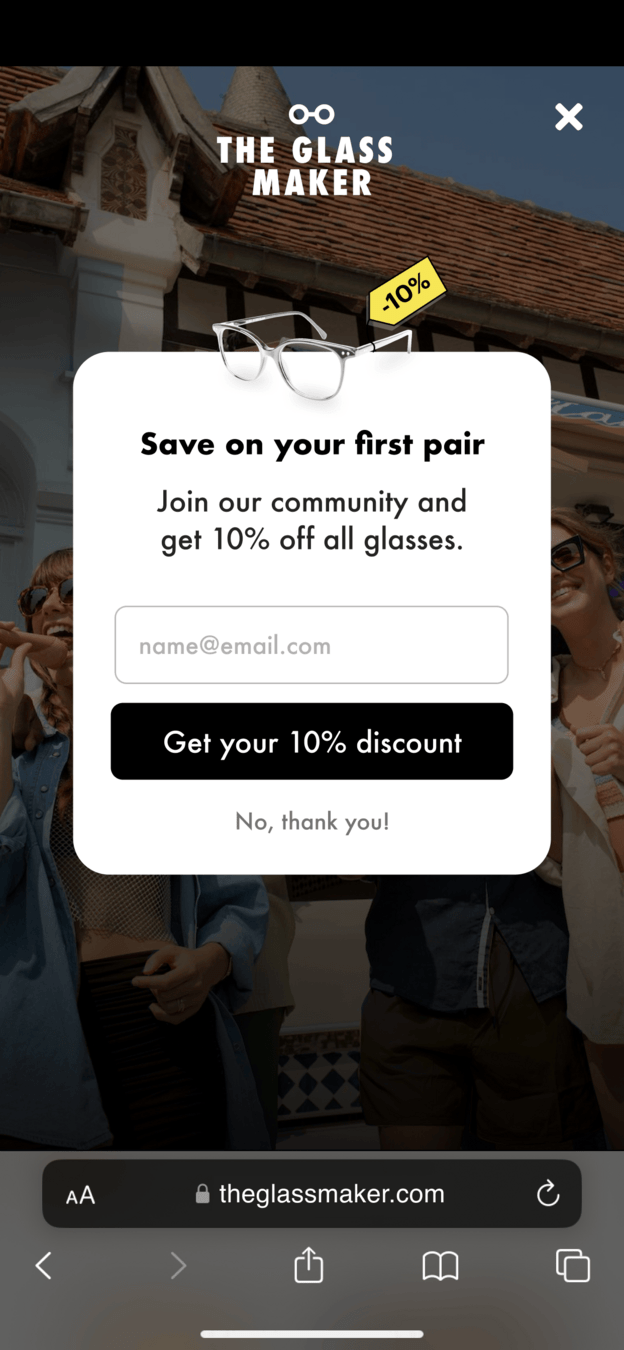 The actual pair
10
Repair 4
Show the actual pair of glasses.
A generic discount is easy to ignore because every store offers one. Adding the glasses the person was just looking at, and saying 'your first pair', makes the offer specific and vivid.
What changed
- A pair of glasses appears above the headline
- 'first shop' becomes 'first pair'
TakeawayMake an offer concrete. People respond to what they can picture.
Priming for better recallSubtle visual cues help people recall specific information and shape how they respond. Showing the glasses reminds them of what they liked while browsing.
Original Easy to closeRepaired Worth reading11
The result
Same offer, same brand. Much harder to dismiss.
Nothing about the discount changed. Clearer contrast, a single focus, readable text, honest words and a concrete picture turned a pop-up people close into one they read.
What changed
- Contrast: the page is dimmed
- Hierarchy: headline, then field, then button
- Readability: dark text on a white card
- Tone: benefit first, polite decline
TakeawayMost design blunders are fixed with small, careful changes, not a redesign.
Every takeaway, in one place
- The setupEvery screen in a buying journey competes with the reason the person came.
- The interruptionAn interruption has to earn its place fast, or it gets dismissed.
- Blunder 1The most important element should be the easiest one to see.
- Blunder 2Decide what should be seen first, second and third, and design for that order.
- Blunder 3Put text on a calm, solid background. Never ask people to read over a photo.
- And the toneLet people say no politely. Guilt might win one click, but it costs trust.
- Repair 1Direct focus by quieting everything that is not the main task.
- Repair 2Every fix can create a new problem. Check the whole screen again after each change.
- Repair 3Say it in fewer words. Every extra word makes the offer easier to skip.
- Repair 4Make an offer concrete. People respond to what they can picture.
- The resultMost design blunders are fixed with small, careful changes, not a redesign.
Source: Growth.Design: How to avoid (and repair) these 3 critical design blunders
Repair the hidden friction before users feel it.
Design blunders rarely announce themselves. They show up as hesitation, rework, abandonment, and support load. Zyxware can help turn those weak spots into clearer journeys.